Why Most People’s Videos Look Boring (And How to Fix It)
Here is something most beginners do not realize. The difference between a video that gets skipped and one that gets shared is usually not the content itself. It is the editing. Specifically, it is the transitions.
You have probably seen it. Two clips that connect so naturally, you barely notice the switch. No jump, no awkward pause. Just smooth. That is what good transitions do, and CapCut makes them surprisingly easy to pull off.
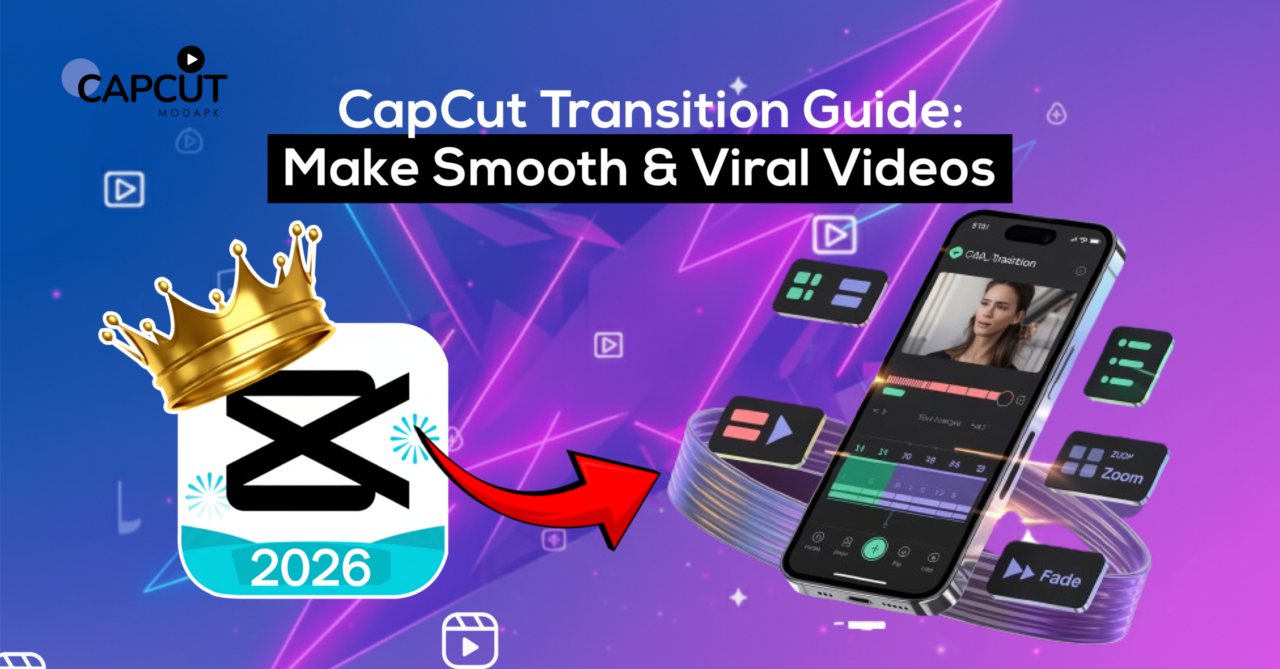
This CapCut transitions guide breaks everything down from scratch. If you have never edited a video before, you are in the right place. If you have edited but transitions still confuse you, same, this is for you too.
Okay, But What Actually Is a Transition?
Simple version: when two video clips sit next to each other on a timeline, there is a point where one ends and the other starts. Leave it alone, and you get a hard cut. That is fine sometimes. But often it feels abrupt, especially if the two clips look very different from each other.
A transition fills that gap. It creates a visual connection between the two clip, maybe a slide, maybe a fade, maybe something flashier. The goal is always the same: make the switch feel intentional rather than accidental.
CapCut video transitions are already inside the app. Nothing to install. Nothing to pay for upfront. Just open the app, import your clips, and they are right there waiting.
How to Add Transitions in CapCut — No Fluff Version
A lot of people Google how to add transitions in CapCut and end up reading a 10-step tutorial that overcomplicates a 30-second process. Here is the real version:
- Open CapCut, tap New Project, and bring in your clips
- On the timeline, find the thin white line between two clips
- Tap it — a panel pops up from the bottom
- Tap any transition to preview it right away
- Drag the slider to set how long it plays
- Tap the checkmark and move on
Done. Genuinely that simple. The only thing that trips people up is not knowing where to tap, and now you do.
Which Transitions Actually Work?
Everyone wants to know what are the best CapCut transitions. Fair question. Here is an honest answer.
There is no single best one. It really depends on what you are making. That said, some transitions just perform better than others across different content types:
Zoom: Punchy and energetic. Great if your video is fast-paced or hype-based.
Slide: Clean and minimal. Works beautifully for fashion, lifestyle, or anything aesthetic.
Spin: A bit dramatic but fun. Travel videos and reaction content love this one.
Fade: The classic. Slow, smooth, emotional. Perfect for storytelling or cinematic clips.
Glitch: Bold and sharp. Matches well with music or anything with an edgy feel.
Pick based on mood, not based on what looks coolest in the menu. A glitch transition in a calm cooking video looks wrong. A fade in a gym motivation reel feels too soft. Match the energy, and you are halfway there.
The Part Nobody Talks About — What Makes Transitions Actually Smooth
People ask how to make smooth video transitions in CapCut all the time. And most guides say “just pick a smooth effect.” That is not really the answer.
The effect is maybe 30% of it. The rest comes from how your clips are set up.
Movement matching is everything. End one clip moving left, start the next one moving left too. The transition practically disappears. Viewers feel it more than they see it.
Timing to music changes everything. Put your transition right on a beat drop or a rhythm hit. CapCut has an auto-beat sync feature; use it. It does the timing work for you.
Shorter is almost always better. 0.3 to 0.5 seconds. That range feels fast and clean. Go longer, and it starts dragging. Viewers notice when a transition overstays its welcome.
Keep your shots visually similar on both sides. Cutting from a super wide shot to an extreme close-up creates a visual shock, and not the good kind. Similar framing on both sides makes CapCut’s smooth transitions feel natural.
CapCut Viral Video Effects — Transitions Are Just the Beginning
Once you get transitions down, the next thing worth exploring is CapCut viral video effects. These are filters, overlays, and speed effects that sit on top of your footage and completely change how it feels.
A few that are genuinely popular right now:
- VHS / Retro filters: Grainy, nostalgic, people actually stop scrolling for these
- Light leaks, Soft, warm overlays that make any clip look more cinematic
- Speed ramping, Normal speed into slow motion and back. Satisfying to watch every time
- AI color presets, tap once, footage looks color-graded. Saves a lot of time
Used together with transitions, these effects take a basic edit and make it feel like something someone spent hours on. For more ideas on editing, checking out CapCut editing tips is worth your time.
CapCut Editing Transitions — Finding Your Own Style
There is a stage every creator hits where they stop copying and start developing their own thing. CapCut editing transitions play a big role in that.
Your style is not just which transitions you use; it is how consistently you use them. One video with ten different transitions looks chaotic. One video with two or three well-chosen transitions used consistently looks professional.
Watch your own videos back. Ask yourself honestly, does this feel like one cohesive piece, or does it feel like random clips stitched together? That question alone will push you in the right direction.
About CapCut Mod APK Transitions — Read This First
Some people specifically look for CapCut Mod APK transitions, hoping to access locked premium features for free. Worth being upfront about this.
Modified APKs are not official versions of the app. CapCut did not make them. Using them can expose your phone to security risks, get your account flagged, or worse, contain hidden malware inside the file itself.
If you want premium features, look into the official CapCut Pro APK download, or read about CapCut Mod APK features before making any decision. Better to know what you are getting into.
One Last Thing
This CapCut transitions guide is not meant to be read and forgotten. Open the app, take two clips, try one transition, and watch it back. That is where actual learning happens.
When you are ready to go further, CapCut editing tips will give you more to work with as your editing gets more confident.
Frequently Asked Questions
How to add transitions in CapCut?
What are the best CapCut transitions for beginners?
How to make smooth video transitions in CapCut?
Match movement between clips, cut on the music beat, and keep duration under half a second. These three things matter more than which transition you actually pick.